
Update Your Credit Card on SOLO Server
If you are a SOLO Server Shared URL customer, you can update the credit card on file for your SoftwareKey monthly subscription directly from your SOLO Server author account. This article walks you through the process and covers a few common issues.
Steps to Update Your Credit Card
- Go to https://secure.softwarekey.com/solo/authors/default.aspx and log in to your SOLO Server author account.
- On the homepage, click the Update Billing Details button.
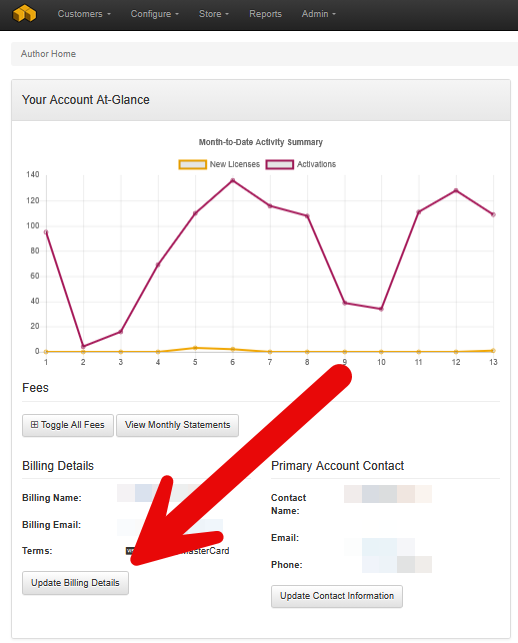
- Enter your new credit card information and billing address.
- Submit the form to save your changes.
Troubleshooting
I do not see an "Update Billing Details" button on the homepage.
You may be under a different billing plan, or are a SOLO Server Dedicated URL customer. Please contact us for assistance.
My card was declined.
The $1.00 validation authorization can be declined for several reasons, including an incorrect card number, expiration date, CVV, or billing address; insufficient available credit; or a hold placed by your issuer on international or online transactions. Double-check the details you entered and contact your card issuer if the problem persists, then try again.
I see a $1.00 charge on my statement.
The $1.00 is an authorization, not a charge, and it should drop off within a few days depending on your issuer. If it has not cleared after a reasonable amount of time, contact your card issuer.
I logged in but I am in the wrong place.
If you logged in and do not see author tools or the Update Billing Details button, you may have logged into the customer license portal instead. Review Login Help for SoftwareKey.com Websites to confirm you are using the correct login.
Still Need Help?
If you experience any difficulty updating this information, please do not hesitate to contact us.